
Apps
Android TV
Install Wren TV on an NVIDIA Shield, a Chromecast with Google TV or any Android TV, sign in with your phone, and get around with the remote.
Wren TV for Android TV runs on Android TV and Google TV 8.0 or later: the NVIDIA Shield, Chromecast with Google TV, Google TV Streamer, and TVs from Sony, TCL, Hisense and others. It direct plays 4K Dolby Vision and HDR10, and passes Dolby Atmos, TrueHD and DTS through to your receiver.
Install
The app isn't on the Play Store yet, so you install it yourself ("sideload" it). You only do this once: after that, installing a newer APK the same way updates it and keeps you signed in.
With the Downloader app (easiest)
On the TV, install Downloader by AFTVnews from the Play Store.
Allow it to install apps:
- Google TV: Settings → System → About, then select Android TV OS build seven times to turn on developer options. Then Settings → Apps → Security & restrictions → Unknown sources, and turn on Downloader.
- NVIDIA Shield and other Android TVs: Settings → Device Preferences → Security & restrictions → Unknown sources, and turn on Downloader.
Open Downloader and enter this address:
text
https://github.com/LTAGROUP/WrenTV/releases/latest/download/WrenTV-AndroidTV.apkWhen the download finishes, choose Install, then Open. You can delete the APK afterwards.
From a computer with adb
If you have Android's platform tools and network debugging turned on (Settings → Device Preferences → Developer options → Network debugging on a Shield):
bashadb connect <tv-ip-address>:5555
adb install -r WrenTV-AndroidTV.apk
Sign in
The TV shows a short code and a QR code. Scan the QR code with your phone, or go to watch.wrentv.com/link and type the code, then sign in with your Wren TV account and approve the TV. In the iOS app, the same thing is under More → Link a TV.
The TV then opens your server by itself. If your account can use more than one, it asks which one.
Getting around
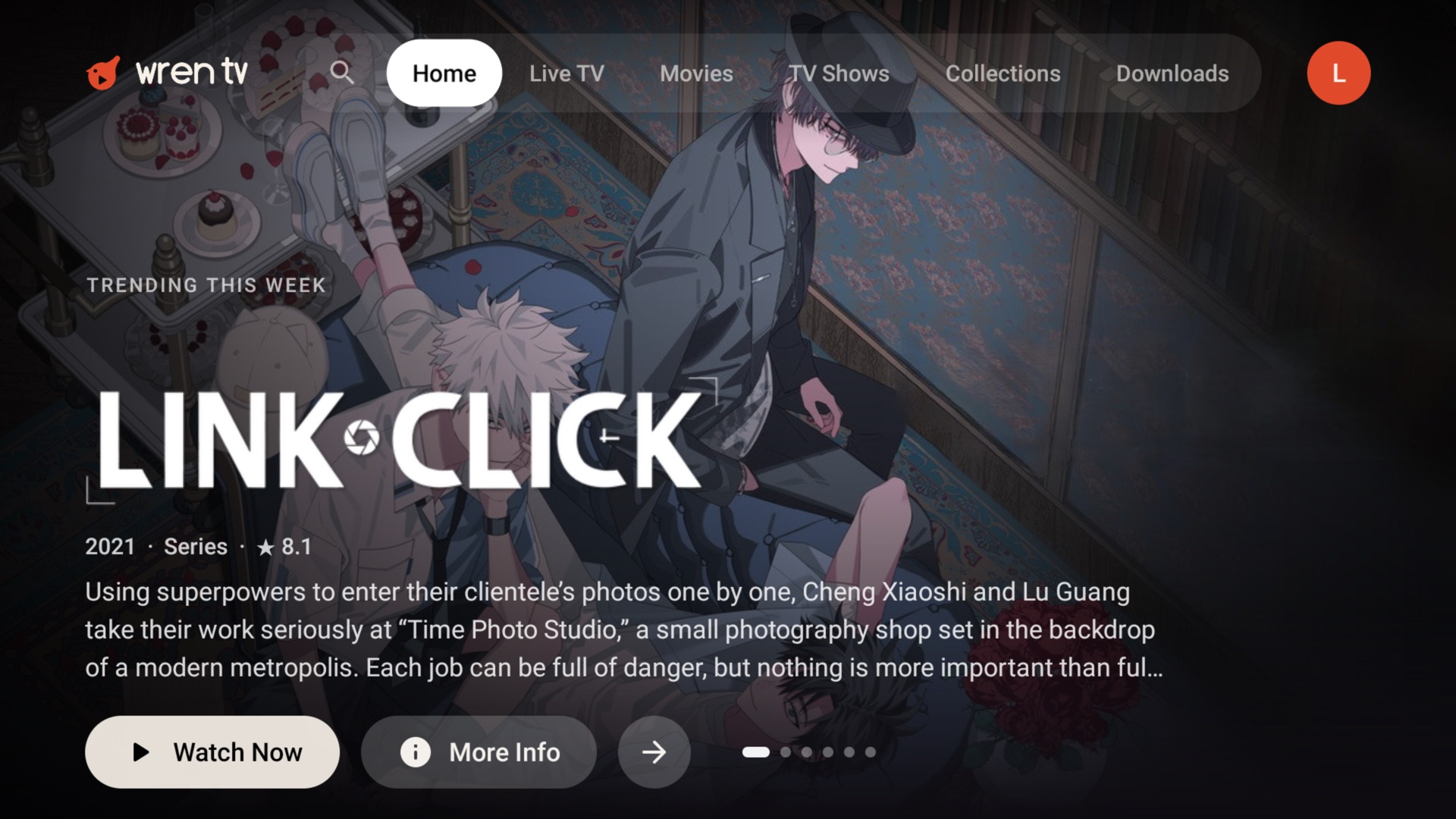
- Home starts with a rotating banner, then Continue Watching, My Watchlist and the rest of your rows. Hold OK on any poster for more options: play from the beginning, go to the show, mark it watched, or remove it from your watchlist.
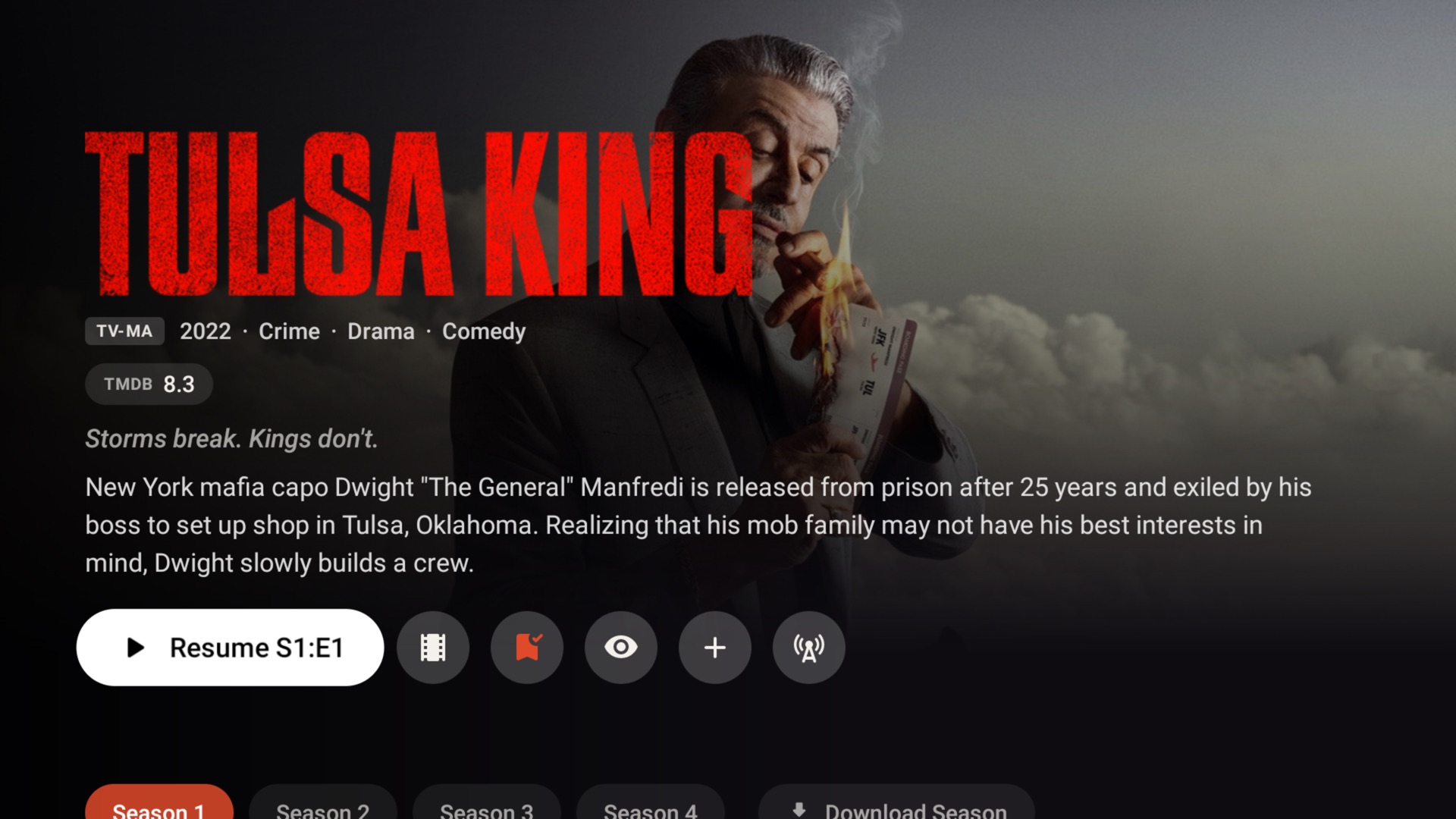
- A title's page has Play (or Resume), Watchlist, Watched, the trailer, versions, and audio and subtitle tracks.
- Search is the magnifying glass at the left of the top bar.
Your watchlist
Press the bookmark button on a movie or show to add it to My Watchlist on Home. Once you've watched a title it drops off the row; press the button again to take one off the list. The watchlist belongs to your account, so it's the same on every app.
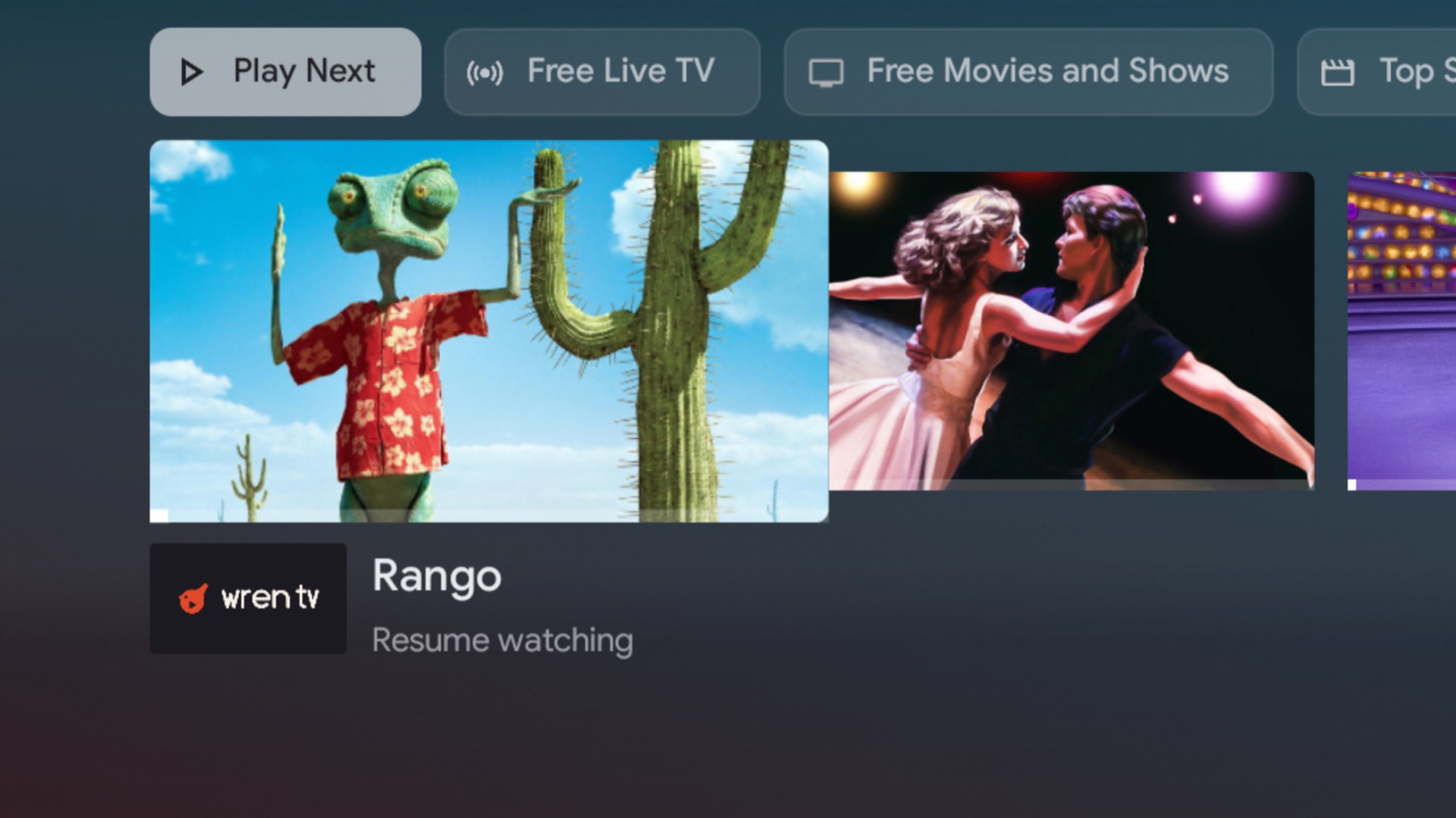
Play Next on the TV's home screen
What you're in the middle of also appears in your TV's own Play Next row (on Google TV, under the Play Next chip on the home screen), so you can pick a show back up without opening the app first. Removing a title there keeps it off until you watch more of it.
Search from the TV
Wren TV can answer your TV's own search. On home screens that show results from apps, your movies and shows appear there, and choosing one opens it in Wren TV.
While watching
| Button | Does |
|---|---|
| OK | Show the controls, or pause and play |
| Left / Right | Skip back or ahead. Hold to scrub faster: the steps grow from 10 seconds to 2 minutes |
| Rewind / Fast-forward (if your remote has them) | The same as Left and Right |
| Up / Down | Move between the timeline and the buttons |
| Back | Cancel a scrub, hide the controls, then leave the player |
While you scrub, a preview of the frame you'll land on shows above the timeline. Previews are made by the server the first time a file plays, so a file's first play may show only a few of them.
The controls also have Skip Intro, Skip Credits, up next, audio and subtitle tracks, and the quality menu. See playback for how they work.
Screensaver
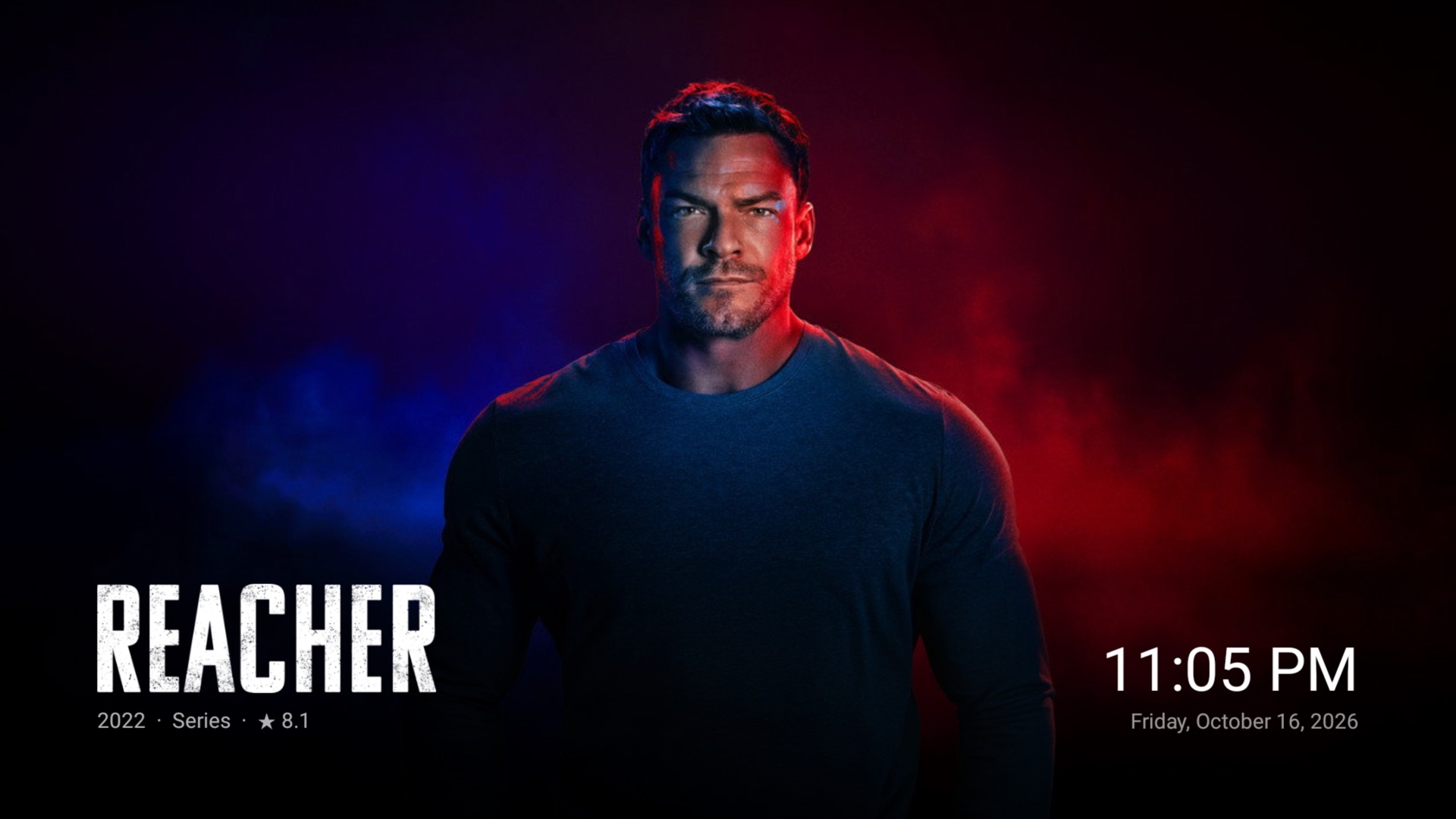
Leave the app idle for a few minutes away from the player and it fades into a slow slideshow of backdrops from your library, with the time. Any button brings back the page exactly as you left it. Your TV's own screensaver still takes over after its own timeout.
Settings
Select your profile picture at the right of the top bar for settings: the server you're on, audio and subtitle languages, interface sounds, theme music on title pages, downloads and sign out. Server owners and admins also get the server's activity, libraries and users.
Troubleshooting
"App not installed" when updating. Builds are signed with the same key, so updates install over the old version. If a build ever doesn't, uninstall Wren TV first (Settings → Apps), then install the new one. You'll need to sign in again.
No sound with TrueHD or DTS. Check that your TV or receiver's surround or passthrough setting is on, and that the TV's own surround setting isn't forced to stereo. Wren TV passes the original track through when the TV or receiver accepts it, and converts it otherwise.
"Request rate limit reached" at sign-in. The account service limits how often one network can refresh sign-ins. Wait five minutes and choose Check Again.